
So, if you’ve been using Windows 11 for a while you may have noticed that your data depletes quickly.
This is caused by Automatic updates that Windows run regularly.
Personally, I like to manually update my Computer.
1. Set Your Network as Metered
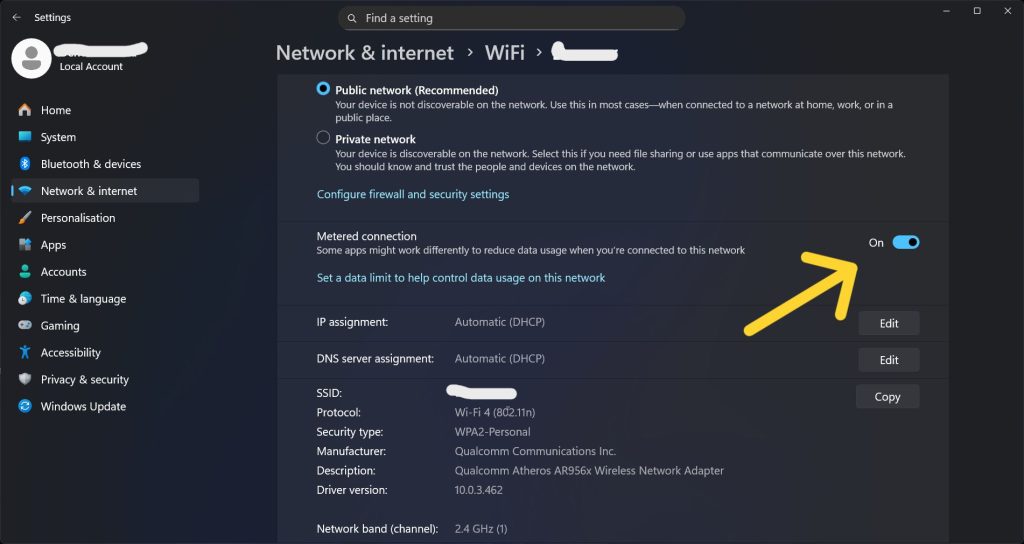
This is one of the safest and most effective ways to reduce data usage.
When you set a connection as Metered, Windows limits background downloads, including updates.
To enable:
- Go to Settings → Network & Internet
- Click Wi-Fi (or Ethernet if you use cable)
- Select your connected network
- Turn on Metered connection
This tells Windows to treat your internet like limited mobile data.
2. Pausing Updates
Back in the Windows 8 and 7 era, you could disable updates, however, modern Windows make updates mandatory that you can only Pause them for a short while.
To pause updates, go to Settings->Windows Updates. Click on Pause Updates and select the pause duration: 1 week, 2 weeks etc.
This is a basic fix, but the Updates will resume automatically after the Pause period ends.
3. Disable Background Apps
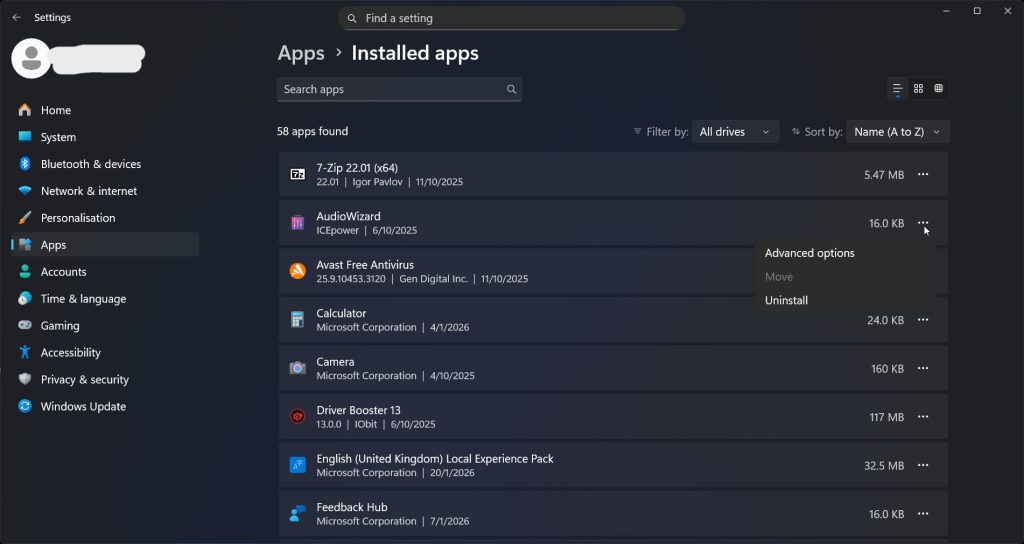
Some apps constantly use data in the background (OneDrive, Store apps, widgets, etc.).
To reduce this:
- Go to Settings → Apps → Installed apps
- Click the three dots next to an app
- Select Advanced options
- Under Background apps permissions, set it to Never
You can also disable Startup apps:
- Press Ctrl + Shift + Esc
- Go to the Startup tab
- Disable unnecessary apps
Got a Gadget You’re Selling
List on Zimbabwe’s marketplace for Used Gadgets
4. Disabling Windows Updates in services.msc
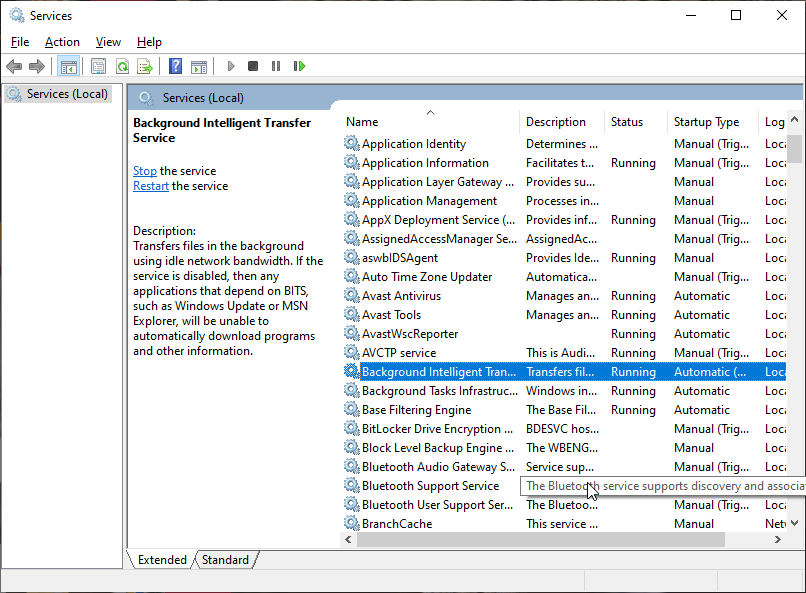
The Windows Services list is were you can stop certain programs from running.
Background Intelligent Transfer Service (BITS).
This service is responsible for downloading updates in the background (Windows Updates, Microsoft Store updates, Defender updates, etc.). It uses idle bandwidth so you don’t notice it — but it still consumes data.
- Press Win + R
- Type
services.msc - Press Enter
- Scroll to Background Intelligent Transfer Service
- Double-click it
- Click Stop
- Change Startup type to Disabled
- Click Apply → OK
5. Monitor Data Usage
Before disabling everything, it’s smart to check what’s actually consuming your data.
- Go to Settings → Network & Internet → Advanced network settings
- Click Data usage
This shows which apps are using the most internet.
Comments